
Turning a simple request into a mini project I actually enjoyed
Recently I was asked by my employer to provide an up‑to‑date export of all my Microsoft certifications. Straightforward enough, right? I’d just renewed a bunch of them, and as a Microsoft Partner they like to keep track of everyone’s achievements. A quick CSV would do the job.
At least, that’s what I thought.
My MS Learn account is linked to our Partner Centre tenant, so I assumed there must be some kind of API, endpoint, or even half‑documented URL that would let me pull certification data programmatically. If it exists, I couldn’t find it and judging by the silence on the internet, neither could anyone else.
Fine. No problem. I’ll just export it manually from the MS Learn portal.
Except… you can’t.
Head to Certifications → no export button.
Okay, maybe the transcript?
Transcript → options are: Transcript settings, Share link, and Print.
Not exactly the rich data export I was hoping for, Microsoft. Maybe there isn’t much demand for this sort of thing, or maybe everyone else just gave up.
The “Share link” option did catch my eye, though. I could have just sent that to my employer, but that felt like I’d be giving them more work. And if they needed the same from another hundred people, it would get messy fast.
So instead of accepting defeat, I did what I like to do all the time:
I started building a solution myself
Trying PowerShell… and Hitting a Wall
My first instinct was to reach for PowerShell. It’s my comfort zone, and usually the right tool for anything involving Microsoft services. But after several attempts, and several increasingly unhinged regex experiments, I still couldn’t reliably grab the certification data in a structured way. Either the formatting was off, or the data wasn’t being exposed in a way PowerShell could sensibly parse.
So I did what any sensible engineer does when they’ve spent too long fighting a tool: I asked an LLM for help.
Claude gave PowerShell a fair shot too, but it ran into the same limitations I did. At that point I thought of another project a colleague was on and he’d scraped websites with Python, and even though I’m not a Python developer (at all), I figured it was worth a try.
Claude started experimenting with a few different approaches and libraries, but the one that finally clicked was Playwright, a browser automation framework that can actually render the page, log in, and let you scrape the DOM exactly as you see it.
To get started, I installed the dependencies:
pip install playwright pandas
And then installed the browser:
playwright install
How the Script Works (Explained Simply)
- Launch a Browser
Playwright spins up a real browser instance (Chromium by default).
This is important because the certification data sits behind your personal account, there’s no public API, no token you can easily grab, nothing. Using a real browser session gets around that.
- Navigate to the Certifications Page
The script automatically navigates to the urls specified in the code, this is an array between lines 11-15
List of transcript URLs
urls = [
'https://learn.microsoft.com/en-us/users/blah-bla
# Add more links here as needed
]
This is the same page you’d normally view manually, the one with all your certifications, renewal dates, and transcript details.
- Wait for the Page to Fully Render
MS Learn loads a lot of content dynamically.
Playwright waits until the DOM is fully populated so you don’t scrape half‑loaded elements or empty containers. - Extract the Certification Data from the DOM
This is the clever bit that I’ve already set in the code
The script uses Playwright’s page selectors to grab:
Certification names
Issue dates
Expiry dates
Renewal status
Transcript IDs
Any other metadata visible on the page
Because Playwright renders the page exactly as you see it, the script can target the same HTML elements you’d inspect in DevTools.
- Convert the Data into a structured table
Once the raw text is collected, pandas turns it into a clean dataframe.
This is where the magic happens, pandas makes it trivial to:
Clean up the text
Normalise date formats
Remove whitespace
Structure everything into neat columns
- Export to CSV
Finally, the dataframe is exported to:
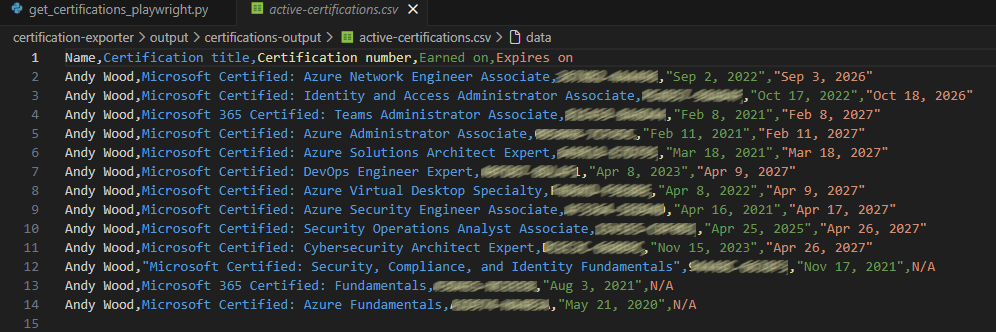
outputs\active-certifications.csv
…giving you exactly the file your employer asked for, without any manual copying, printing, or “share link” nonsense.
An example of my output is below, I’ve tested this with a few colleagues transcripts also and the script handles multiple transcripts to export
Not my normal blog, but hope you’ve enjoyed this read and may end up using the script one day, it’s located in my git repository here:
awood-ops/certification-exporter