When serverless compute changes the networking game, manual processes don’t cut it anymore
There’s a shift happening on a lot of the Databricks projects I’m seeing right now. Teams are moving towards Databricks Apps, a way to build and host data applications directly within Databricks, backed by serverless compute rather than classic clusters. It’s a clean model. No cluster to manage, no idle compute burning budget, and your app lives right next to your data.
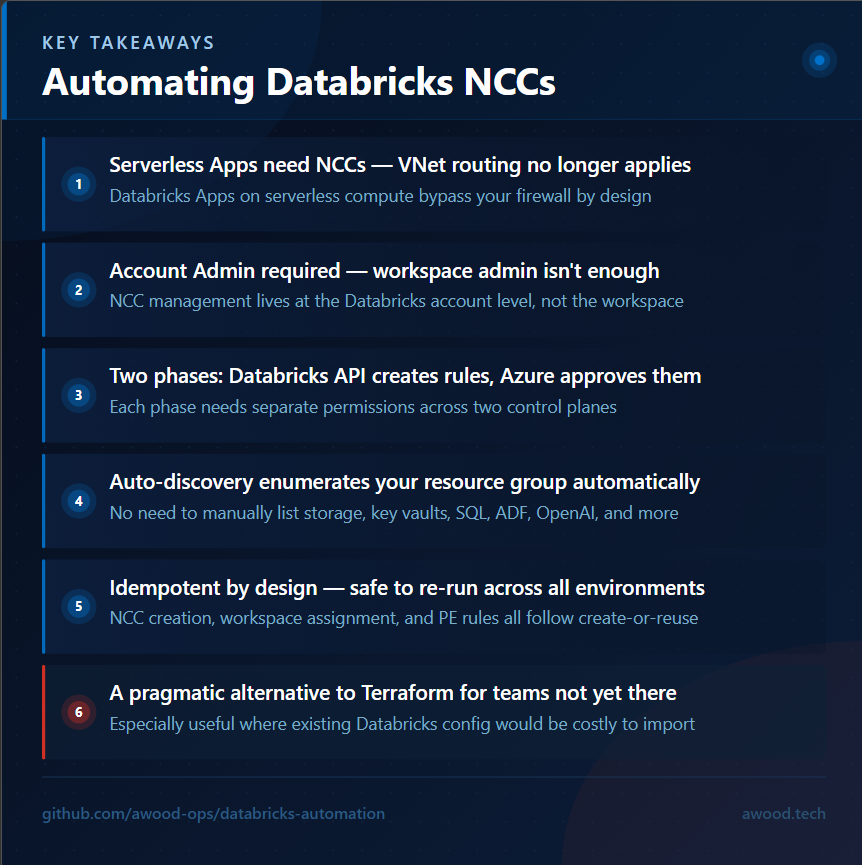
But serverless compute doesn’t traverse your firewall. That’s by design. And that changes the networking conversation completely.
With classic compute, you had a VNet, you had private endpoints, and traffic from your Databricks clusters to Azure services like ADLS, Key Vault, or Azure SQL flowed through infrastructure you controlled. With Databricks Apps on serverless, that model doesn’t apply. Instead, you need Network Connectivity Configurations — NCCs — to tell Databricks how to reach those services privately.
NCCs aren’t complicated in concept. In practice, setting them up manually for every workspace, across every environment, for every private endpoint you need, gets old fast. So I automated it.
What’s an NCC, actually?
Before diving into the scripts, it’s worth a quick explanation for anyone who hasn’t hit this yet.
A Network Connectivity Configuration is a Databricks-level object that defines how a workspace connects to external resources over a private network. You attach an NCC to a workspace, then add private endpoint rules to it, one per Azure service you want to reach privately. Databricks then creates the corresponding private endpoint connection requests on the Azure side, which you then need to approve from within Azure.
That last bit is important. There are two distinct phases:
1. Create the NCC, attach it to the workspace, and submit the private endpoint requests via the Databricks Accounts API
2. Approve those pending connection requests in Azure
Which is exactly why this ended up as two main scripts — plus a third for bootstrapping the account admin needed to run them.
Before You Start: Account Admin Bootstrap
This one caught me out early. NCC management happens at the Databricks account level, not the workspace level. That means the service principal running your pipeline needs to be an Account Admin in the Databricks Accounts Console — workspace-level admin isn’t enough.
To handle this, there’s a separate script (`New-DatabricksAccountAdmin.ps1`) that uses the Databricks Accounts SCIM API to provision a user or service principal as an account admin. It accepts either a UPN or an Entra ID object ID, resolves the principal via Microsoft Graph if needed, and patches the role via SCIM. Running it once at environment setup time means your pipeline SP has what it needs before the NCC work begins.
Script One: Creating the NCC and Private Endpoints
`Deploy-DatabricksNCC.ps1` handles everything on the Databricks side. It:
– Creates the NCC object via the Databricks Accounts REST API (or reuses one if it already exists)
– Attaches it to the target workspace
– Creates private endpoint rules for each required Azure service
The whole thing is designed to be idempotent — re-running against the same environment is safe. NCC creation, workspace assignment, and PE rule registration all follow a create-or-reuse pattern.
Authentication
The script supports two authentication paths.
For pipeline use, it uses the federated identity token provided by the pipeline runtime — no client secret required:
$tokenBody = @{
    grant_type            = 'urn:ietf:params:oauth:grant-type:jwt-bearer'
    client_id             = $ClientId
    client_assertion_type = 'urn:ietf:params:oauth:client-assertion-type:jwt-bearer'
    client_assertion      = $env:SYSTEM_ACCESSTOKEN
    scope                 = 'all-apis'
}
$tokenResponse = Invoke-RestMethod `
    -Method      Post `
    -Uri         "https://accounts.azuredatabricks.net/oidc/accounts/$AccountID/v1/token" `
    -ContentType 'application/x-www-form-urlencoded' `
    -Body        $tokenBody
$dbToken = $tokenResponse.access_token
The service principal needs a federated credential configured in Entra ID pointing at your pipeline issuer, but that’s a one-time setup — and it means no long-lived secrets anywhere near your pipeline variables.
For interactive or local use, it falls back to the current Az session:
$rawToken = (Get-AzAccessToken -ResourceUrl 'https://accounts.azuredatabricks.net/' -ErrorAction Stop).TokenOne thing worth flagging: Az 12+ returns tokens as `SecureString` rather than plain string, which will silently break if you try to use it in an `Authorization` header. The script handles both, but if you’re rolling your own version of this, make sure you account for it.
The Account-Level API
All NCC management goes to `https://accounts.azuredatabricks.net`, not your workspace URL. You need your Databricks Account ID to construct the base URL — it’s in the top-right profile menu in the Accounts Console. If you get it wrong, you’ll get a 404 that doesn’t tell you much.
Creating the NCC
$nccBody = @{ name = $NccName; region = $Region } | ConvertTo-Json$newNCC = Invoke-RestMethod `
-Uri "https://accounts.azuredatabricks.net/api/2.0/accounts/$AccountID/network-connectivity-configs" `
-Method Post `
-Headers $headers `
-Body $nccBody `
-ContentType 'application/json'
$nccID = $newNCC.network_connectivity_config_idThe region matters here. The NCC region must exactly match the Databricks workspace region — mismatches cause a hard API error with a message that makes it clear enough, but it’s the kind of thing you want to catch in your `.env` files rather than at runtime. The script defaults to `uksouth` and accepts a `-Region` parameter to override.
Attaching the NCC to a Workspace
$workspaceBody = @{ network_connectivity_config_id = $nccID } | ConvertTo-JsonInvoke-RestMethod `
-Uri "https://accounts.azuredatabricks.net/api/2.0/accounts/$AccountID/workspaces/$WorkspaceID" `
-Method Patch `
-Headers $headers `
-Body $workspaceBody `
-ContentType 'application/json'Adding the Private Endpoint Rules
Each Azure service gets its own private endpoint rule, identified by its ARM resource ID and `group_id` (the sub-resource type):
$peBody = @{
    group_id    = $resourceType
    resource_id = $resourceID
} | ConvertTo-Json
Invoke-RestMethod `
-Uri "https://accounts.azuredatabricks.net/api/2.0/accounts/$AccountID/network-connectivity-configs/$nccID/private-endpoint-rules" `
-Method Post `
-Headers $headers `
-Body $peBody `
-ContentType 'application/json'The `group_id` values for each resource type are: `blob` and `dfs` for Storage Accounts, `vault` for Key Vault, `sqlServer` for SQL Server, `dataFactory` for Data Factory, `account` for Cognitive Services and Azure OpenAI, `namespace` for Event Hub and Service Bus namespaces, and `Sql`/`SqlOnDemand`/`Dev` for Synapse workspaces (each gets three rules). Most of these are in the docs. The Azure OpenAI one — `account` — took longer than it should have to confirm.
All Databricks REST calls in the script go through a wrapper that retries up to 3 times with a 5-second back-off, which matters because the API occasionally returns transient errors during NCC operations.
Auto-Discovery Mode
Rather than supplying the resource list manually, the script supports `-AutoDiscover`. Point it at a resource group and subscription, and it queries Azure for all Storage Accounts, Key Vaults, SQL Servers, Data Factories, Cognitive Services accounts, Event Hub namespaces, Service Bus namespaces, and Synapse workspaces, then builds the full resource list automatically. It also resolves the Databricks Workspace ID from the deployed workspace resource, so you don’t need to look that up separately.
.\Deploy-DatabricksNCC.ps1 `
    -AccountID         '00000000-0000-0000-0000-000000000000' `
    -NccName           'ncc-dlz-prod-uksouth-01' `
    -AutoDiscover `
    -SubscriptionId    '00000000-0000-0000-0000-000000000000' `
    -ResourceGroupName 'rg-contoso-dap-dev-uks-01'
One caveat: auto-discovery is resource-group scoped. If your PE targets span multiple resource groups or subscriptions, you’ll need to use the manual `-Resources` parameter instead.
Script Two: Approving the Private Endpoints in Azure
Once `Deploy-DatabricksNCC.ps1` runs, you’ll have pending private endpoint connection requests sitting on each of the target Azure resources. Databricks has done its part — Azure needs to approve them.
`Approve-DatabricksPrivateEndpoints.ps1` handles this. It uses `-PrivateLinkResourceId` to retrieve connections from each resource and approves anything in a `Pending` state:
$allConnections = Get-AzPrivateEndpointConnection `
    -PrivateLinkResourceId $resourceId `
    -ErrorAction Stop

$pendingConnections = @($allConnections | Where-Object { $_.PrivateLinkServiceConnectionState.Status -eq 'Pending' })
foreach ($conn in $pendingConnections) {
    Approve-AzPrivateEndpointConnection `
        -ResourceId          $conn.Id `
        -Description         $ApprovalDescription
}
Pending connections can take a few minutes to appear after NCC rule creation, which is why there’s a configurable wait between the two pipeline stages (more on that below). The approval step also has retry logic to handle 409 conflicts when a resource is still in a provisioning state — it’ll retry up to 6 times with a 20-second gap before giving up.
The script supports `-DescriptionFilter` to narrow approvals by connection name when multiple systems are creating private endpoints against the same resource. And like the NCC script, it supports `-AutoDiscover` against a resource group.
WhatIf and PR Safety
Both scripts respect `-WhatIfEnabled`, which reports what would happen without making changes. More usefully, they auto-detect the `IS_PULL_REQUEST` environment variable — so if you’re running the pipeline on a pull request, it’ll report planned changes without executing them. This is the pattern I’ve found works cleanly in Azure DevOps.
Putting It Together: The Pipeline
There’s an Azure DevOps pipeline YAML (`pipelines/Deploy-Databricks-NCC.yaml`) that wires everything together in two stages.
Stage one (`Deploy_NCC`) loads `.env` files for the target environment, resolves the resource group and NCC name, and runs the NCC deployment script via `AzurePowerShell@5`. Stage two (`Approve_PEs`) waits a configurable number of seconds — defaulting to 300 — then runs the approval script. The wait gives Azure time to surface the pending connections before the approval script runs.
Pipeline parameters let you target `dev`, `tst`, or `prd`, override the NCC name if you need to, and adjust the approval wait time per environment if some take longer to propagate than others.
Why This Matters
The real value here isn’t the scripts themselves — it’s the pattern. As more teams adopt Databricks Apps and serverless compute, NCCs stop being a one-off task and become something you need to get right, repeatedly, across multiple workspaces and environments.
Manual setup is fine for a proof of concept. It doesn’t scale, and it’s the kind of thing that gets missed under pressure or done inconsistently between environments. Having this automated means a new workspace gets the right network configuration every time, without relying on someone remembering all the steps or having the right context to do it manually.
I’m fully aware that Terraform can do this. The Databricks provider has NCC and private endpoint support, and if you’re starting fresh with infrastructure-as-code, managing this through state is absolutely the right long-term approach — drift detection, plan/apply workflows, the whole thing. But not every customer is using Terraform, and for those that are, many have already done a significant amount of Databricks configuration outside of it. Getting all of that into Terraform state means a lot of importing, and for some teams in the middle of a delivery, that’s not a trade-off they’re willing to make right now. These scripts are a practical option for those situations — a quick win that gets NCCs deployed and managed consistently without requiring a broader shift in tooling. The goal of keeping everything managed by state is still the right one; this is just a pragmatic path for teams that aren’t there yet.
GitHub Copilot with Claude Sonnet helped move this along quickly — particularly useful for building out the endpoint rule blocks for each service type and tidying up error handling. I’ve found that pairing AI assistance with your own knowledge of what the API actually does (rather than what the docs say it does) is a pretty good combination.
The scripts are published at [awood-ops/databricks-automation]. If you’ve hit similar challenges with NCC automation or have thoughts on how you’re handling serverless networking in Databricks, drop a comment or reach out on LinkedIn.